
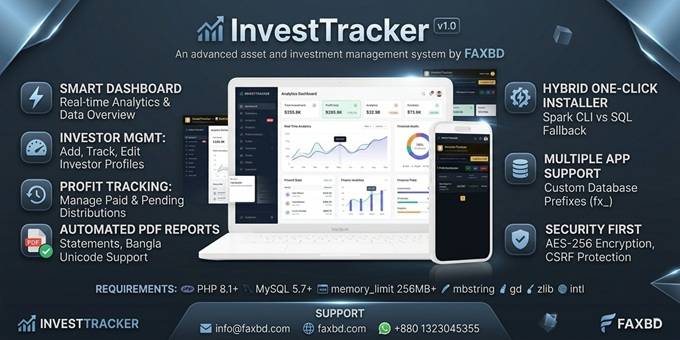
InvestTracker – Professional Asset & Investment Management System
InvestTracker is a high-performance, secure web application built on CodeIgniter 4, designed to provide a centralized hub for managing financial portfolios. Whether you are tracking personal investments, business capital, or diversified assets, InvestTracker offers a robust suite of tools to monitor growth and generate detailed reports.
Built with a focus on clean architecture and hosting compatibility, it features a unique Dual-Mode Hybrid Installer that ensures a smooth setup on anywhere.
Key Features
- Smart Analytics Dashboard: Real-time visual overview of total investments, profit margins, and asset performance.
- Transaction Management: Comprehensive tracking of deposits, withdrawals, and recurring investment logs.
- Automated PDF Reporting: Generate professional investment statements with built-in Bangla Unicode support and custom formatting.
- Hybrid One-Click Installer: A resilient setup wizard that automatically detects server capabilities (Spark CLI vs. Direct SQL Import) to prevent installation crashes.
- Database Prefix Support: Safely install InvestTracker into a shared database without affecting existing tables (e.g., WordPress or POS systems).
- Security & Performance: CSRF protection, AES-256 encryption for sensitive data, and optimized database indexing for lightning-fast queries.
Requirements
Core Server Requirements
- PHP Version: PHP 8.1 or higher (PHP 8.2 / 8.3 recommended).
- Database: MySQL 5.7+ or MariaDB 10.3+.
- Web Server: Apache (with
mod_rewriteenabled) or Nginx.
Required PHP Extensions
The following extensions must be enabled in your php.ini for CodeIgniter 4 and mPDF to function:
- intl: Essential for time/date localization and CI4 core operations.
- mbstring: (Critical) Required for processing Bangla Unicode and multi-byte text in reports.
- gd: Required for image handling and chart rendering within PDF reports.
- mysqli: For database connectivity.
- openssl: For secure data encryption and session handling.
- curl: For system updates or external API communication.
- zlib: Required by mPDF for PDF compression.
- dom & xml: Critical for document structure rendering.
System Configuration (php.ini)
To avoid "Blank Page" or "Timeout" errors during PDF generation or database setup:
- Memory Limit: Minimum 256MB (mPDF is resource-intensive).
- Execution Time: 60-120 seconds (Recommended for generating large reports).
- Allow_url_fopen: Should be On (for fetching logos or remote assets).
- Upload Max Filesize: 10MB+.
Directory Permissions
The following folders must have write permissions (755 or 775) for the installer and logging system:
/writable/(Includescache,logs,session,uploads)./.env(The installer must be able to create this file)./install/(The script must be able to delete this folder after completion).
Installation Instructions
Follow these 4 simple steps to get InvestTracker up and running in less than 2 minutes:
Step 1: Upload & Extract
- Upload the
source-code.zipfile to your server’s root directory (usuallypublic_htmlor a subdomain folder). - Extract the contents of the ZIP file.
- Ensure the
/install/folder anddatabase.sqlare present in your file manager.
Step 2: Create a Database
- Log in to your cPanel (or hosting dashboard).
- Go to MySQL® Databases and create a new database (e.g.,
invest_db). - Create a Database User and assign it to the database with All Privileges.
- Keep your Database Name, Username, and Password ready.
Step 3: Update The Domain Directory
For cPanel:
- Go to Domains.
- Click Manage next to your domain.
- Update the Document Root field from
public_htmltopublic_html/public. - Click Update.
Step 4: Run the Smart Installer
- Open your web browser and navigate to:
https://yourdomain.com/install - Follow the on-screen prompts:
- Database Info: Enter the host (usually
localhost), database name, user, and password. - Admin Settings: Provide your email and a secure password for the dashboard.
- Database Info: Enter the host (usually
- Click Install Now.
Step 5: Finalize & Secure
- Once you see the "Installation Success" message, the
/install/folder will be automatically deleted for security. - You will be redirected to the login page.
- Log in with your admin credentials and start tracking your investments!
Troubleshooting & Tips
- 404 Error on Login: If you get a 404 error after installation, ensure that
mod_rewriteis enabled on your server and that the.htaccessfile exists in your root folder. - Blank PDF Reports: If PDF generation fails, check your PHP Memory Limit (must be 256MB+) and ensure the
mbstringextension is enabled for Bangla font rendering. - Manual Setup: If your server blocks the automated installer, a
database.sqlfile is included in theSQL/folder for manual import via phpMyAdmin.
$20



| Created | 07 Apr 2026 |
| Compatible Browsers | Firefox, Chrome, Safari, Opera, Edge |
| Package Includes | JavaScript JS, JavaScript JSON, HTML, CSS, PHP, SQL, Layered PNG |
| File Size | 53.5 MB |
Report This File

